 Kiwi Car AI
Voice AI for Apple CarPlay
Just ask.
Kiwi knows where you are.
Kiwi answers your questions out loud while you drive, and it knows your location and direction of travel. Ask for a petrol station and you hear about the one ahead of you, not the one behind. The full answer waits on your iPhone afterwards.
15 free uses · No account needed · No tracking, no ads

See it work
You ask. Kiwi answers.
Ask & answer
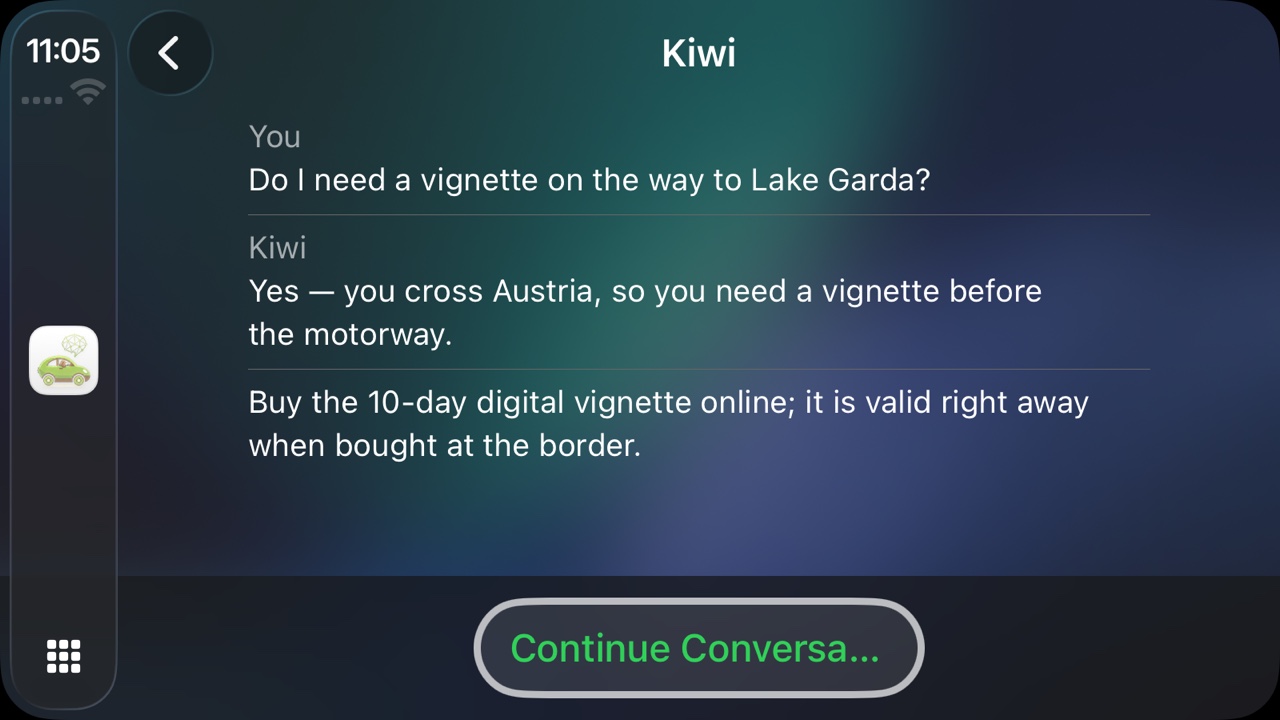
“Do I need a vignette for Lake Garda?”
Kiwi explains that the route crosses Austria and tells you to buy a 10-day digital vignette, read aloud while you keep driving. Same with “Where can I get fuel in the next 20 minutes?”: Kiwi knows your location and direction of travel and names stations along your way.
Tap it, or say it
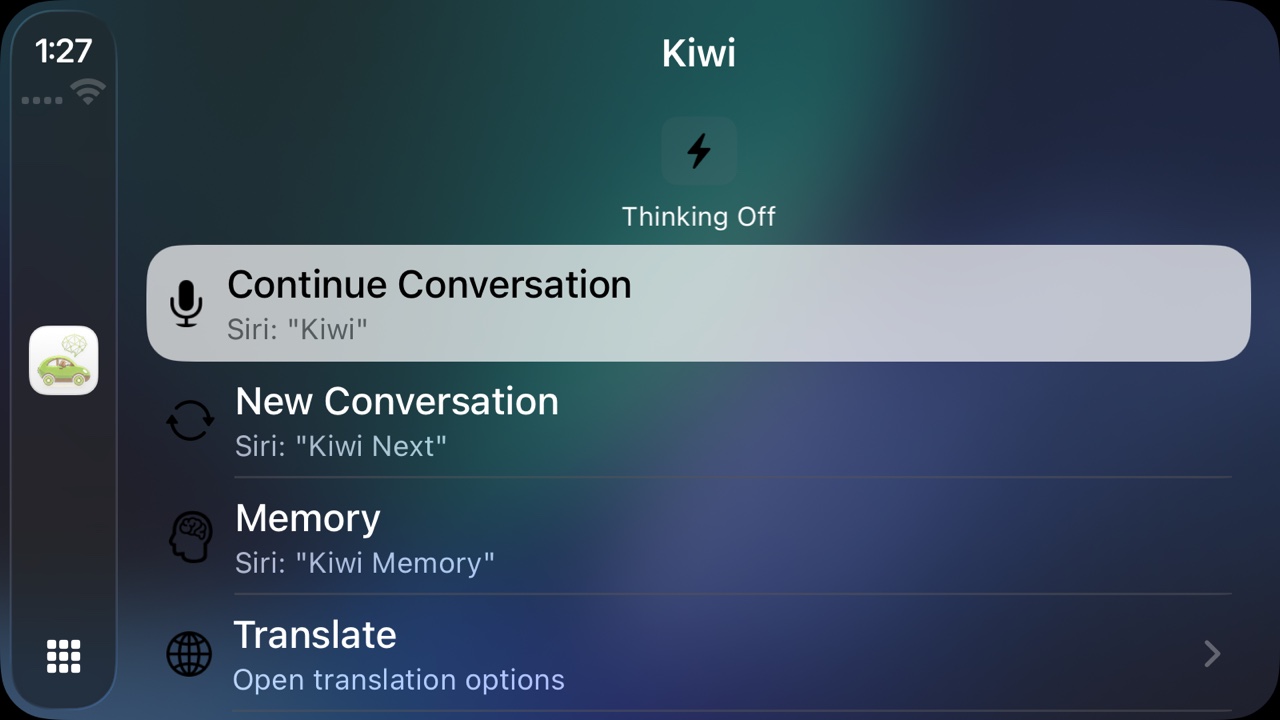
Four buttons on the CarPlay screen, or four phrases
On the CarPlay display, tap the one you want. Driving and would rather not look down? Press the wheel's voice button and say the phrase instead. Same four actions, hands on the wheel. Every answer is read aloud, and when the signal drops in a tunnel, Kiwi quietly retries instead of making you ask again.
Memory
Clear your head while driving.
Good ideas often come behind the wheel and are gone by the time you park. Say “Kiwi Memory” and the thought is saved as a voice note on your iPhone. From there, send it through the share sheet to Notes, Mail, Messages, or any other app.

Knows where you are
If you allow it, Kiwi sends your precise location along: address, direction of travel, and speed. That way, answers about nearby places fit the road you are actually on.
Live web search
Ask about something current and Kiwi can pull in fresh answers from the web, not just what the model already knew.
Thinking Mode
Switch it on when an answer needs more care. Kiwi reasons through a deeper answer and shows just enough of its thinking in CarPlay to let you know it is working.
Translate a conversation
Tap “Driver” or “Passenger” and speak. Kiwi says the translation out loud in the other language, and the screen shows the original and the translation one above the other. Your most-used languages are one tap away; just name any other.
On your iPhone
When you park, it's all there to read
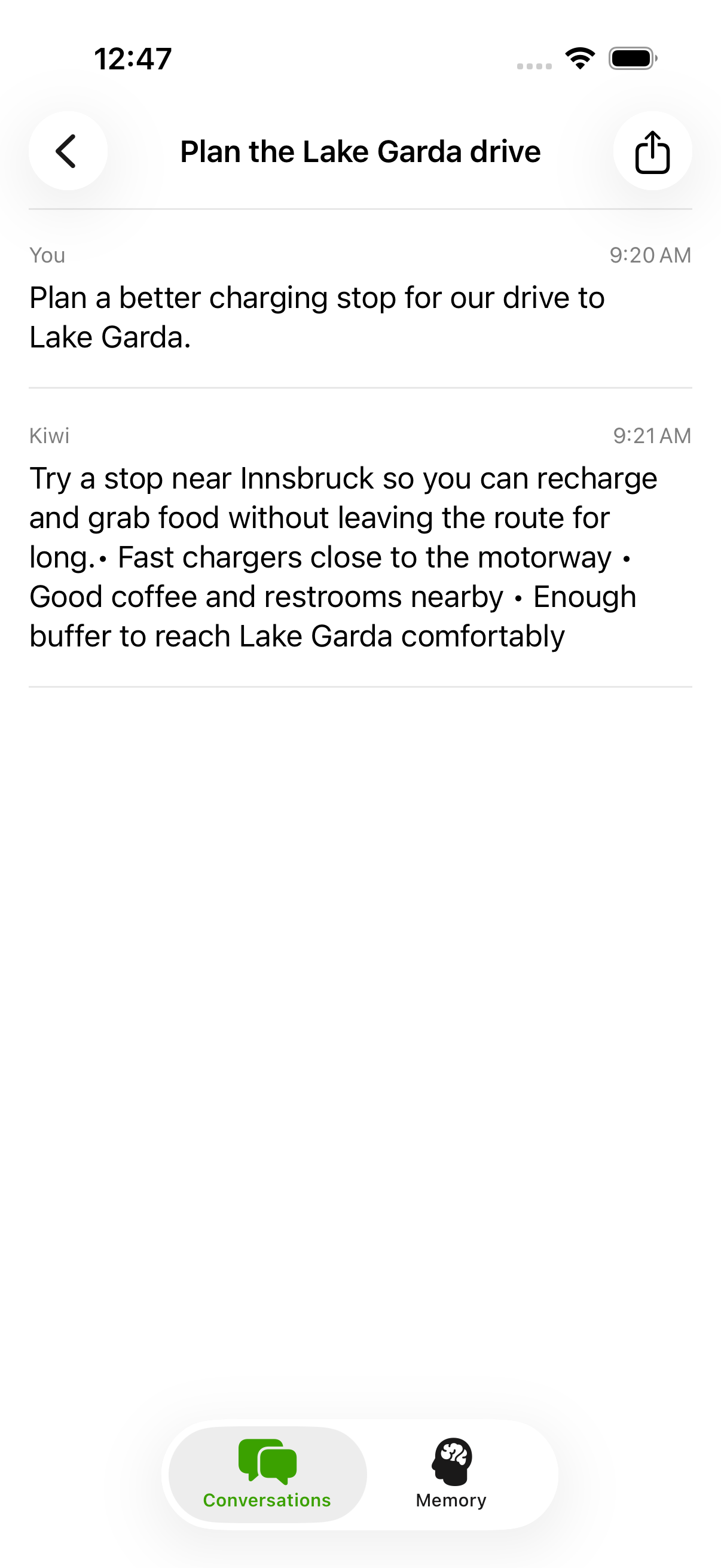
You start new questions in CarPlay. On your iPhone, the drive's questions, answers, and voice notes are waiting for you to read in full, share, or tidy up, like the vignette answer or the idea you saved near the exit.
Read the whole answer
CarPlay keeps it short and spoken. Back on your iPhone, every answer is there in full, formatted and easy to scroll through.
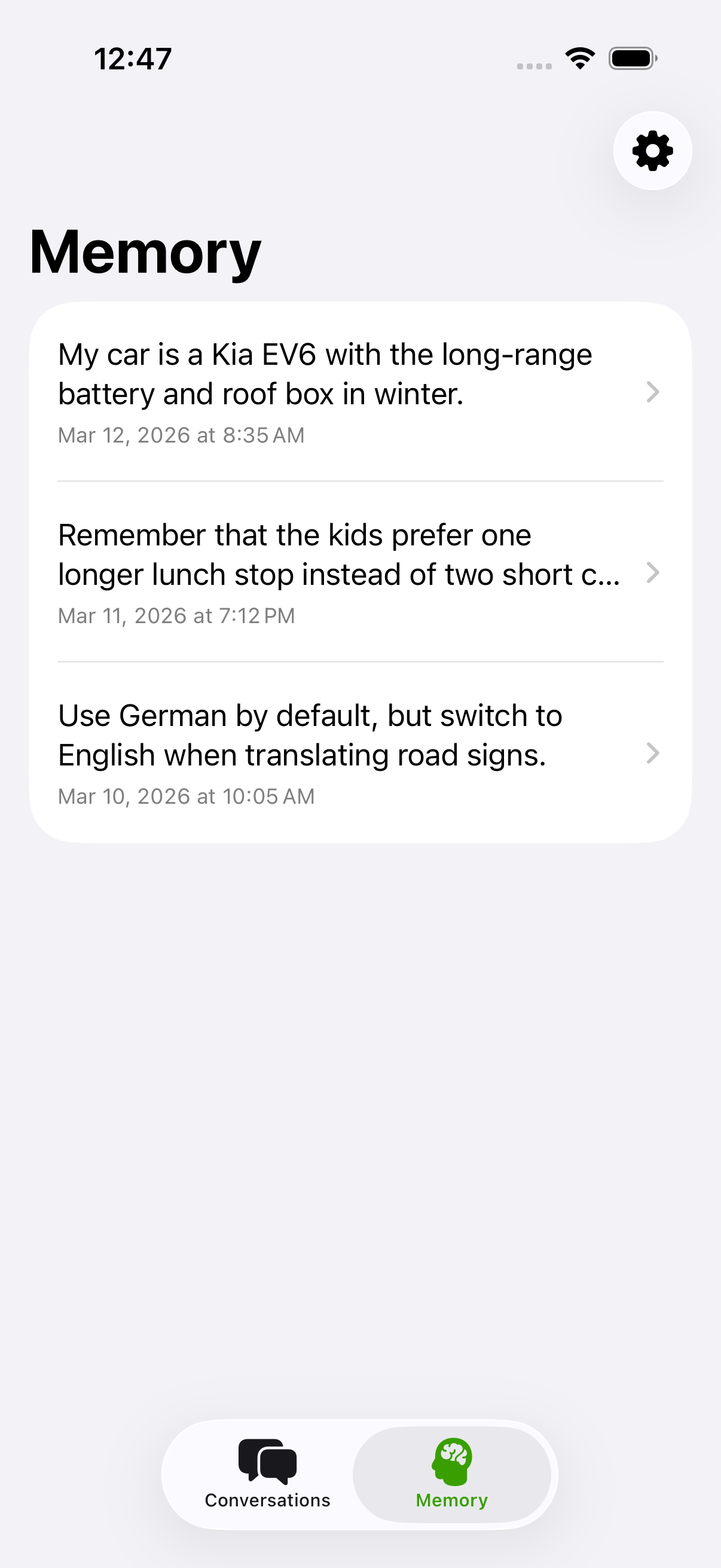
Your voice notes, kept
The thoughts you saved with “Kiwi Memory” wait in one place. Send them through the share sheet to Notes, Mail, or any other app.
Share or tidy up
Send a whole conversation on through the iOS share sheet, or swipe to clear what you no longer need.
Why not just Siri or ChatGPT?
What Kiwi does differently in the car
ChatGPT, Perplexity, and Grok are in CarPlay now and answer questions well. But they hold an open conversation: the mic stays on until you mute or end it. Kiwi works in short turns. You ask, Kiwi answers, done. The table shows what else Kiwi brings to the drive.
| Kiwi | ChatGPT | Perplexity | Grok | |
|---|---|---|---|---|
| Built around the drive | ||||
| Short turns, not an open-mic conversation You ask, Kiwi answers, then the mic goes quiet until you start the next question. Follow-ups still know what you just talked about. The others run an open voice conversation that keeps listening until you end it. | Yes | No | No | No |
| Precise location with direction of travel With location sharing on, each question carries your address, direction of travel and speed. “Where can I get fuel?” then means ahead of you, not behind you. Without your permission, your location stays on your iPhone. | Yes | No | No | No |
| Notes & history kept on your iPhone Your conversations and voice notes are stored on your iPhone, not in an online account. Kiwi needs no sign-up. ChatGPT, Perplexity and Grok keep your chats in your account. | Yes | No | No | No |
| One Siri phrase straight to the task Say “Kiwi” to Siri and you’re asking right away. “Kiwi Translate” opens translation, “Kiwi Memory” saves a thought. No tapping through menus while you drive. | Yes | No | No | No |
| Save a thought as a voice note Say “Kiwi Memory” and speak. The thought lands on your iPhone with date and time, and you can share it to Notes, Mail or Messages later. | Yes | No | No | No |
| Two-person translation mode Tap “Driver” or “Passenger” and speak. Kiwi says the translation aloud, and the screen shows the original and the translation together. ChatGPT can translate in a conversation but has no mode for two people. | Yes | Limited | No | No |
| Thinking Mode, toggled in the car For tricky questions, switch on Thinking Mode right in CarPlay. Kiwi then thinks longer before it answers and shows you that it’s working. | Yes | No | No | No |
✓ yes · ~ limited · — no. All four do these: a native CarPlay app, live web search, answers read aloud, open questions and follow-ups. None of the four gets a wake word (Apple allows it for none), and all answer hands-free once you start them. Based on each app's CarPlay behaviour as of June 2026.
Seven things built for the drive.
Download on the App StorePrivate by design
Short, intentional turns instead of an always-on mic
Kiwi only listens when you start it, and what you save stays on your iPhone.
You start it
Nothing happens until you say “Kiwi” or tap. Kiwi doesn't listen in the background or start sessions on its own.
Kept on your iPhone
No account or email needed. Your conversations and voice notes live only on your iPhone, not with us. Live translations aren't saved, and Kiwi only shares your location if you allow it. No tracking, no ads, no selling your data.
Works with Siri, not against it
You say “Kiwi,” Siri opens the right flow, your hands stay on the wheel.
Questions
Good to know
Do I have to look at the screen?
How is this different from ChatGPT, Perplexity, or Grok on CarPlay?
What do I need to run it?
What happens to my data?
Free to try
Your next drive, answered.
Start with 15 free uses in CarPlay, no subscription needed. If you want to keep going afterwards, subscribe to the monthly plan in the App Store.
Billed through your Apple ID at the price the App Store shows for your region. Cancel anytime in the App Store.